April 2026

How to Find a Lost iPhone Without Find My iPhone: Top 4 Methods
That sinking feeling in your stomach when you realize your iPhone is gone is all too familiar. You check your pockets, your bag, and every surface around you, but it’s nowhere to be found. For many, the immediate next step is to use Apple’s built-in “Find My” feature. But what happens if you never set it up, or if it’s not working for some reason? You might feel like you’ve hit a dead end. Fortunately, there are several effective methods you can use to locate a lost iPhone, even without relying on Apple’s default service. This guide will walk you through the best alternatives available.
Table Of Contents
Can You Find iPhone Without Find My iPhone?
Yes, you absolutely can. While “Find My” is a powerful tool, it’s not the only way to track down a misplaced device. Forgetting to enable a feature or not having access to your Apple ID shouldn’t mean your expensive smartphone is lost forever. Several third-party applications and alternative methods offer robust location tracking capabilities. These solutions can help you pinpoint your device’s location, whether it slipped between the couch cushions or was left behind at a coffee shop. You have options that can provide peace of mind and a clear path to recovering your phone.
Top Methods to Find a Lost iPhone Without Find My iPhone
If you need a reliable way to locate an iPhone, especially if you’re helping a family member or friend find their device, these methods provide excellent alternatives to Apple’s native tool.
1. Use a Dedicated Location Tracking App: Phonsee

When it comes to finding a lost device without needing pre-configured Apple services, a specialized application like Phonsee stands out as the premier choice. It’s designed to give you a clear, real-time view of a device’s location, making it an invaluable tool for concerned parents, partners, or friends trying to help someone find their missing phone.
Phonsee works independently of the “Find My” feature, offering a reliable backup if the primary service fails or was never activated. Here’s what makes it so effective:
- Real-Time GPS Tracking: The core function of Phonsee is its ability to display the iPhone’s precise location on a detailed map. You can see where the device is right now, which is crucial for a speedy recovery.
- Geofencing Alerts: This advanced feature allows you to set up virtual boundaries on the map. For example, you can designate areas like home, school, or work as safe zones. If the phone enters or leaves one of these zones, you receive an immediate notification. This is incredibly useful for knowing if a child has left school or if a loved one’s phone has moved from a known location.
- Location History: Phonsee doesn’t just show you the current location; it also records a history of where the device has been. You can review the phone’s past movements, which can help you retrace its steps and identify where it might have been left behind.
- Stealth Mode Operation: The application runs discreetly in the background, so it doesn’t interfere with the phone’s normal usage or drain the battery excessively.
Using Phonsee is a proactive way to ensure you always have a method for tracking a device. It’s a powerful solution for anyone looking for an answer to how to find my iPhone without iCloud, as it operates on its own system, providing a safety net that goes beyond Apple’s ecosystem.
2. Use Google Timeline
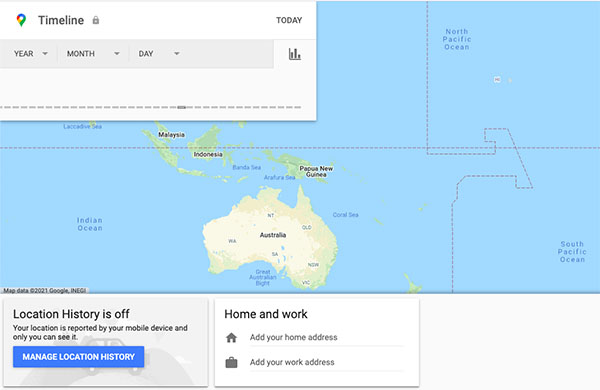
If you have a Google account logged in on the lost iPhone and have enabled Location History, Google Timeline can be a surprisingly effective tool. Many iPhone users utilize Google Maps for navigation, which often means Location History is already active. This feature tracks and records the phone’s location over time, creating a detailed log of its movements.
Here’s how to use it:
- Access Your Timeline: On any web browser, go to the Google Timeline website (google.com/maps/timeline) and sign in with the same Google account that is on the lost iPhone.
- Check the Last Known Location: The dashboard will display a map showing the phone’s recent location history. You can select the date the phone was lost to see a path of where it has been.
- Pinpoint the Final Stop: Look at the last reported location point. This is likely where the phone is currently located, or at least where it was when it was last connected to the internet or had a GPS signal.
While Google Timeline doesn’t offer real-time tracking like Phonsee, it provides an excellent historical view. It’s a great free option for those wondering how to find a lost iPhone without Find My iPhone using services they might already have active.
3. Use Another Apple Device

Even without the “Find My” app on your iPhone, you might still be able to locate it if you have other Apple devices, like an iPad or MacBook, linked to the same Apple ID. The “Find My” service is integrated across the Apple ecosystem.
Here’s how it works:
- Open the “Find My” app on your iPad or MacBook.
- Ensure you are logged in with the same Apple ID as the lost iPhone.
- The app will display a map showing the locations of all your connected devices.
- Select your missing iPhone from the list to see its current or last known location.
From here, you can play a sound to help you find it if it’s nearby, or place it in Lost Mode. This method works well, but it depends on having another Apple device and being able to find my iPhone without Apple ID access is not possible with this approach.

What to Do If Your iPhone Is Offline or Turned Off
Finding an iPhone that is offline or has a dead battery presents a greater challenge, but it’s not impossible. Here’s what you can do in this situation.
Check the Last Known Location
Both Apple’s “Find My” network and Google Timeline will show the last location where the phone was online. This is your best starting point. The phone is likely still in that area, unless someone found it and moved it.
- With “Find My”: If you had “Send Last Location” enabled, your iPhone automatically sent its location to Apple just before the battery died. You can view this location by logging into iCloud.com or using the “Find My” app on another device.
- With Google Timeline: As mentioned, Google Timeline will show the last recorded location point before the device went offline.
Enable Lost Mode Remotely
Even if the phone is offline, you should immediately enable Lost Mode through iCloud.com. Here’s why this is important:
- Locks Your Device: Lost Mode remotely locks your iPhone with a passcode, protecting your personal data.
- Displays a Message: You can display a custom message on the lock screen with a contact number. If an honest person finds your phone, they can call you without accessing your information.
- Suspends Apple Pay: It automatically suspends your ability to make payments with Apple Pay.
- Sends a Notification: As soon as the phone is turned on and connected to the internet, you will receive a notification and an update on its current location.
Retrace Your Steps
Go back to the basics. Think about where you last used your phone. Carefully retrace your route, checking places like your car, your office, or any stores or restaurants you visited. Sometimes, the simplest solution is the most effective. Call the establishments you were at and ask if anyone has turned in a lost phone.
Contact Your Cellular Carrier
If you believe your phone has been stolen, you should contact your mobile provider. They can take important steps to protect your account:
- Suspend Service: They can temporarily suspend your service to prevent unauthorized calls, texts, and data usage.
- Blacklist the IMEI: They can add your phone’s unique IMEI number to a national blacklist. This prevents the phone from being used on any carrier’s network in the country, even with a new SIM card.
You can find your iPhone’s IMEI number on its original box or by logging into your Apple ID account at appleid.apple.com and navigating to the “Devices” section.
Conclusion
Losing your iPhone is stressful, but not having “Find My” enabled doesn’t mean all hope is lost. By using powerful third-party apps like Phonsee, you gain a reliable and feature-rich way to track a device in real time, set up geofences, and review location history. This is often the best choice for anyone looking for a comprehensive solution, especially when helping others.
Additionally, leveraging services like Google Timeline or the broader Apple ecosystem can provide the information you need to pinpoint your phone’s last known location. If the device is offline, remember to enable Lost Mode immediately to protect your data and contact your carrier to secure your account. By combining these strategies, you significantly increase your chances of being reunited with your lost iPhone.