
April 2026
How to See What People Are Doing on Your WiFi: 100% Wroking
Your home WiFi network is the digital highway for every device connected to it. From smartphones and laptops to smart TVs and gaming consoles, a lot of data travels back and forth. This raises an important question for homeowners, parents, and anyone managing a network: can you see what others are doing on your connection? Understanding your network’s activity is crucial for security, ensuring bandwidth is used fairly, and, for parents, keeping an eye on their children’s online safety. This guide will walk you through how to see what people are doing on your WiFi, from simple checks to advanced tools.
Table Of Contents
Can You See What People Are Doing on Your WiFi?
Yes, it is entirely possible to see what people are doing on your WiFi. When a device connects to your network, all of its internet traffic passes through your router. This central point of access creates a digital trail. While most data is encrypted, meaning you can’t read the content of emails or messages without specialized tools, you can still gather a significant amount of information. You can see which websites are visited, how much data is being used, and what devices are connected. Effective monitoring internet activity can help you spot unauthorized users, identify bandwidth hogs, and ensure your network is being used safely and appropriately.
How to See What People Are Doing on Your WiFi
Gaining visibility into your network traffic can be done in several ways. Some methods are straightforward and built into your existing hardware, while others rely on specialized software to give you a more detailed picture. Below, we explore four effective methods, starting with the most comprehensive solution.
1. Use a Monitoring App like Phonsee

For those who need a detailed and user-friendly way to monitor activity, a dedicated monitoring application is the gold standard. Phonsee stands out as a top-tier tool designed to give you a complete overview of a device’s internet usage. It goes beyond simple website lists, offering deep insights into online behavior, which is particularly useful for parents concerned about their children’s digital well-being.
Phonsee provides a powerful suite of features that makes monitoring internet activity simple and effective. You can see browsing history, social media activity, and even deleted content.
How to Get Started with Phonsee:
- Create Your Account: Visit the Phonsee website and sign up for an account. Choose the subscription plan that best fits your monitoring needs.
- Install the App: After purchasing, you will receive an email with installation instructions. Follow the step-by-step guide to install the Phonsee app on the target device you wish to monitor. The process is quick and doesn’t require technical expertise.
- Start Monitoring: Once the app is installed, log in to your Phonsee dashboard from any browser. From here, you can view all the collected data, including a detailed log of visited websites, bookmarks, and even the duration of visits.
Useful Tips:
- Use the keyword alert feature to get notifications when specific words or phrases are searched for online.
- Regularly check the social media monitoring section to understand interactions on platforms like Instagram and Facebook.
- Phonsee operates discreetly, so you can monitor activity without interrupting the device user.
2. Check Your Router’s Logs
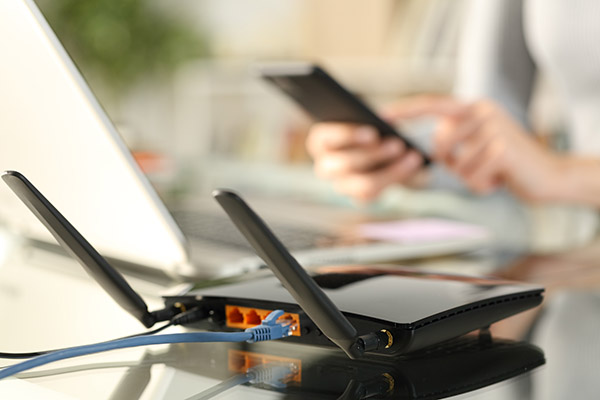
Most internet routers keep a basic log of activity on the network. These logs can tell you which devices are connected and, in many cases, which websites have been accessed. This method is free and uses the hardware you already own, making it a great starting point for anyone curious about their network traffic. Learning how to check WiFi router history on phone or computer is a valuable skill for any network owner.
How to Access Router Logs:
- Find Your Router’s IP Address: This is usually printed on a sticker on the router itself. Common addresses include 192.168.1.1 or 192.168.0.1.
- Log In to the Admin Panel: Open a web browser on a device connected to the WiFi and type the router’s IP address into the address bar. You will be prompted to enter a username and password, which are also often found on the router’s sticker.
- Locate the Logs: Once logged in, navigate through the administrative interface. Look for sections named “Logs,” “Activity Log,” “Firewall Log,” or “System Log.” The exact name and location will vary by router brand and model.
- Analyze the Data: The logs will show a list of IP addresses that have been accessed from devices on your network. You may need to use an online tool to look up what websites correspond to these IP addresses.
Useful Tips:
- Router logs can fill up quickly and may be overwritten. Check them regularly if you need to track activity over time.
- Change the default admin password for your router to prevent unauthorized access to your settings and logs.
3. Use Network Monitoring Apps
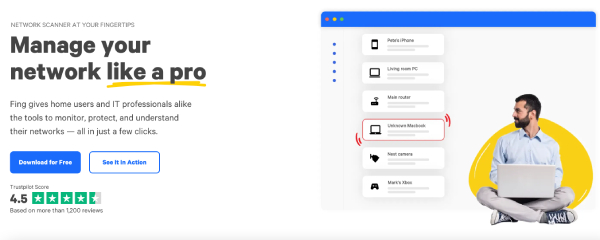
Beyond comprehensive tools like Phonsee, there are other network monitoring applications that can scan your WiFi and provide insights. These apps, often called network scanners, can quickly identify all the devices connected to your network and sometimes capture the traffic they are generating. An example is Wireshark, though it is highly technical. A more user-friendly option is an app like Fing.
How to Use a Network Scanner:
- Download the App: Find a reputable network scanning app on the Google Play Store or Apple App Store and install it on your smartphone.
- Connect to Your WiFi: Ensure the phone you are using is connected to the same WiFi network you want to scan.
- Run the Scan: Open the app and initiate a network scan. The app will discover all connected devices, listing their IP addresses, MAC addresses, and often the device manufacturer.
- Review the Device List: Check the list for any unrecognized devices. Some apps also offer features to see the services and open ports on each device, giving you more information about their activity.
Useful Tips:
- These apps are excellent for quickly identifying “WiFi thieves” or unauthorized devices on your network.
- Some scanners offer alerts that notify you whenever a new device joins your network.
4. Leverage Built-in Router Features

Many modern routers come with enhanced features, including parental controls and activity trackers that are more user-friendly than raw system logs. These features are designed to give you more direct control over your network without needing third-party software.
How to Use Built-in Router Features:
- Log In to Your Router: As with checking logs, you need to access your router’s administrative panel via its IP address.
- Find Parental Controls or Access Control: Look for a section labeled “Parental Controls,” “Access Control,” or “Website Filtering.”
- Configure Monitoring: In this section, you can often assign devices to specific users or profiles. From there, you can view activity reports that show which sites have been visited by which device.
- Set Up Filters and Schedules: Many routers also allow you to block specific websites or categories of content and set time limits for internet access on certain devices.
Useful Tips:
- Explore all the settings your router offers. You might have powerful monitoring tools available that you were not aware of.
- Ensure your router’s firmware is up to date to get the latest features and security patches.
What is the Best Method of Monitoring Internet Activity?
While all the methods discussed can provide valuable information, Phonsee offers the most comprehensive and detailed solution for monitoring internet activity. Unlike router logs, which can be cryptic and lack detail, Phonsee provides a clear, organized dashboard that translates raw data into understandable insights.
Phonsee excels because it focuses on a specific device, giving you a granular view of online behavior. You can see not just the websites visited, but also search history, social media interactions, and messages. This level of detail is something that router-level monitoring simply cannot provide. Its ease of use makes it accessible to everyone, regardless of technical skill. For parents or anyone needing a reliable way to understand digital habits, Phonsee is the superior choice.
FAQ
Can a WiFi owner see what sites I visit on my phone?
Yes, a WiFi owner can see the websites you visit. When you use their network, your traffic goes through their router. The router can log the IP addresses of the sites you connect to. While they may not see the specific content on an encrypted (HTTPS) site, they will know you visited that site. Using tools like Phonsee or checking router logs makes tracking visited sites straightforward for the network owner.
How can I check if someone is sharing my data?
If you suspect someone is using your mobile data through a personal hotspot, you can check your phone’s settings. On both Android and iPhone, there is a “Personal Hotspot” or “Tethering” section. This area will show you if the hotspot is active and how many devices are connected. You can also monitor your overall data usage in your phone’s cellular settings. A sudden, unexplained spike in data consumption is a strong indicator that someone else may be using your connection.
How can I secure my personal hotspot?
To secure your personal hotspot, ensure that it’s protected by a strong password. Avoid using simple or easily guessable passwords, such as “12345678” or “password.” On most devices, you can set or change your hotspot password in the “Personal Hotspot” or “Tethering” settings. Additionally, select the most secure encryption option available, such as WPA3 if supported. Disabling your hotspot when not in use can also help prevent unauthorized access.
Conclusion
Understanding what’s happening on your WiFi network is no longer a task reserved for IT professionals. With the right tools and knowledge, anyone can gain insight into their network’s activity. From checking router logs and using network scanners to leveraging powerful applications like Phonsee, you have multiple options for monitoring traffic.
By taking proactive steps to monitor your WiFi, you can enhance your security, manage your bandwidth, and ensure a safer online environment for your family. Choose the method that best suits your needs and start taking control of your digital domain today.